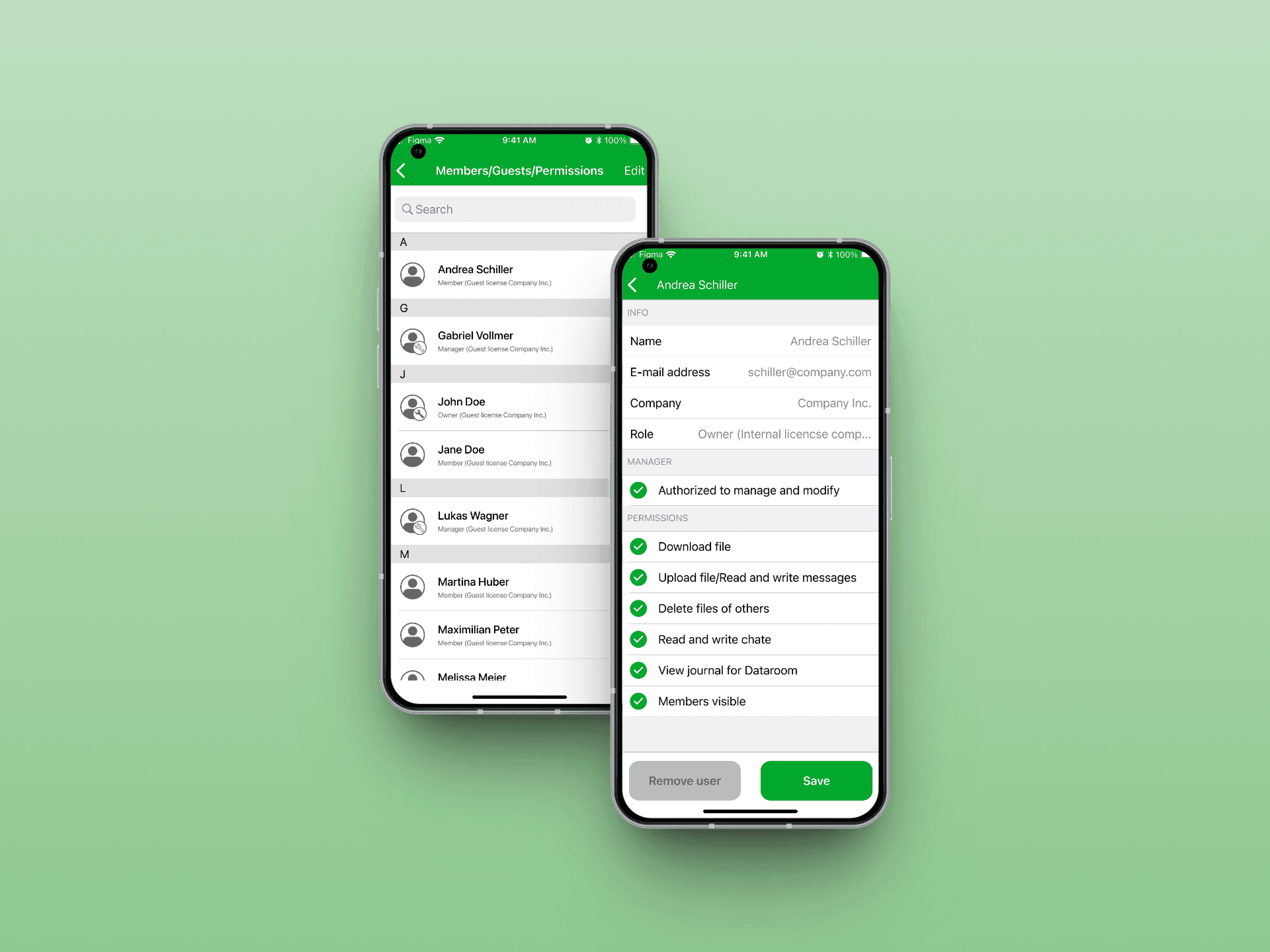
AT A GLANCE
Problem: A wide desktop permissions table had to fit on a narrow smartphone screen.
My contribution: Concept and Figma mockups for iOS and Android, click dummy, moderated testing with five existing customers, handoff to both development teams.
Result: Shipped in both apps. Two confirmation dialogs based on test observations, deliberately consistent interaction across both platforms.
idgard is a cloud storage solution specialized in data security that enables protected collaboration in the enterprise environment using the patented Sealed Cloud technology. The central concept is so-called boxes, i.e. folders, into which owners can invite additional users and assign them granular permissions (read, write, delete, view members, invite members).
In the web application, the management of these box members is implemented as a wide table: a list of names on the left-hand side, alongside several columns with attributes and permissions that can be toggled per user via checkbox. The goal of this project was to make member management available in the mobile apps as well, without losing any relevant functionality compared to the web version.
Initial situation
The challenge was primarily a design one: An interface designed for Full HD desktop monitors had to be transferred to the narrow, vertical screen of a smartphone. At the same time, both platforms were to follow their respective design conventions (Human Interface Guidelines for iOS, Material Design for Android) in order to feel native.
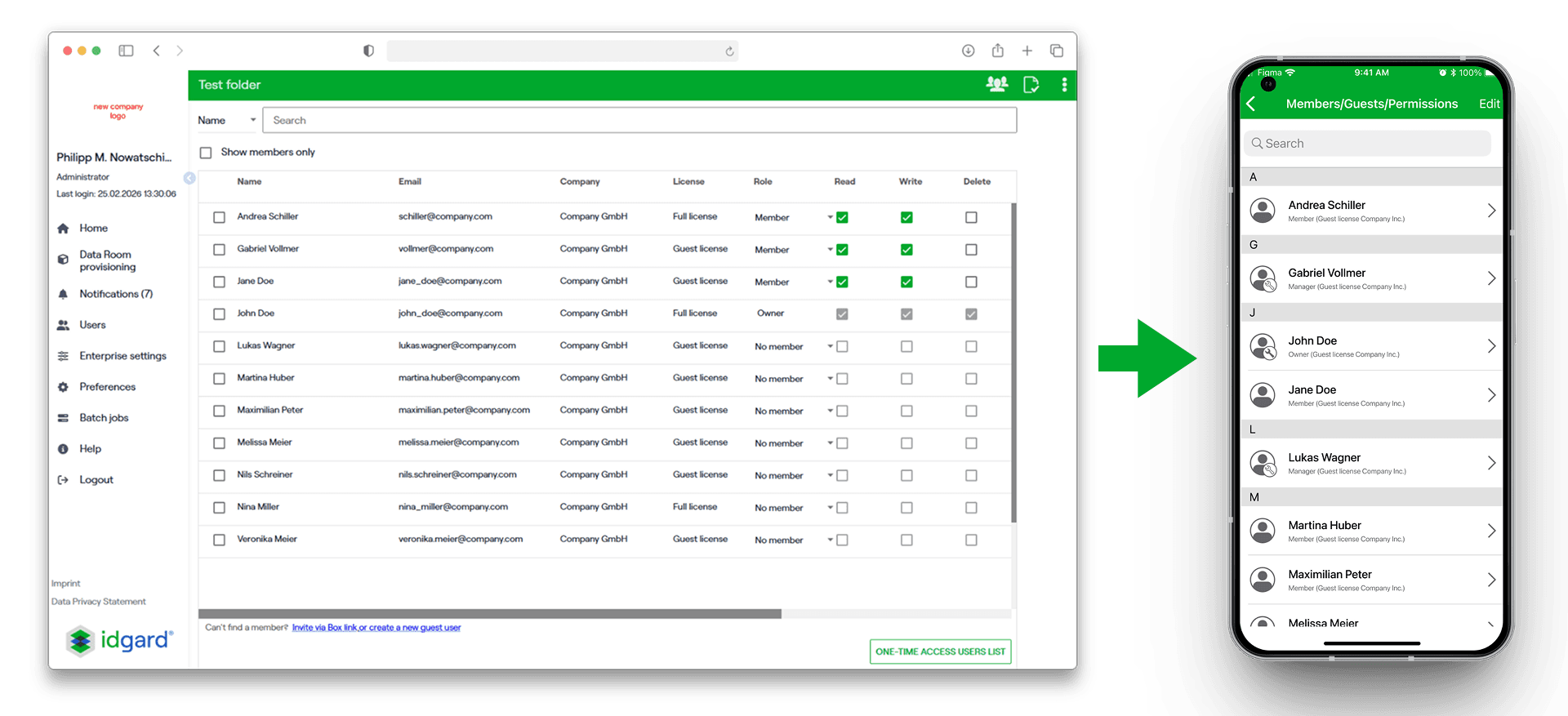
Key questions at the start of the project:
How are the member list and user-specific permissions divided when there is no space for a table?
Which actions from the web version are really relevant on mobile, and which can be simplified or omitted?
How is finding individual users in longer lists handled on mobile devices?
My role
As the sole UX designer, I was responsible for concept and implementation:
Translating the existing functionality into platform-compliant mockups for iOS and Android in Figma
Creating a clickable prototype with all key actions
Conducting small user tests with existing customers via MS Teams
Design of empty states (e.g., "no members in this folder yet") and error states (e.g., "online connection lost")
Handover to the iOS and Android developers
Because the task involved transferring an existing functionality rather than defining new features, the scope was largely predetermined. The research focus was therefore on qualitative validation of the interaction concept.
Qualitative Validation
Using five existing customers, moderated tests were conducted on the click dummy. The following were observed in particular:
Finding individual members in the list
Understanding the division between list view and detail page
The comprehensibility of multiple selection when adding or removing several members
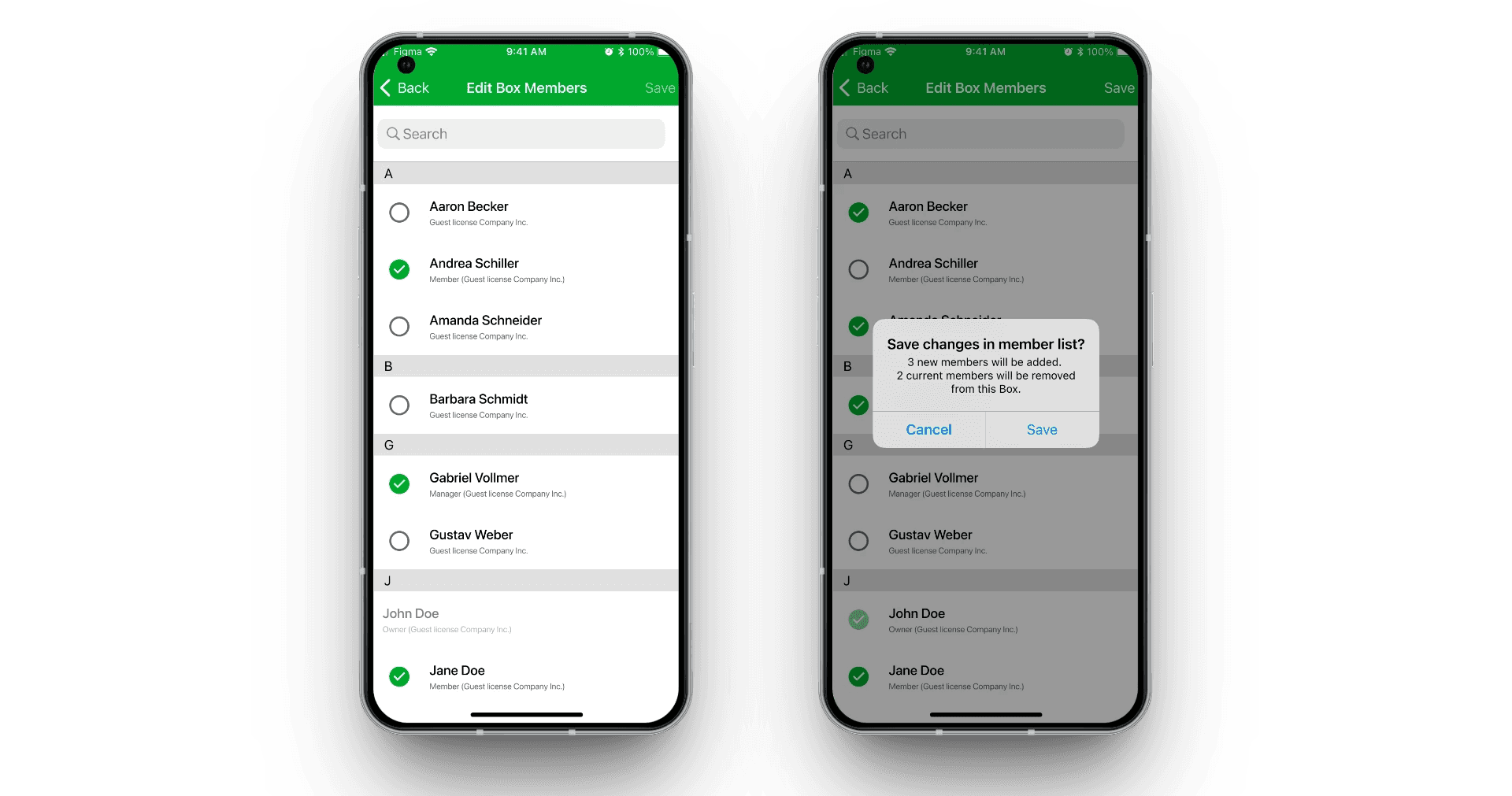
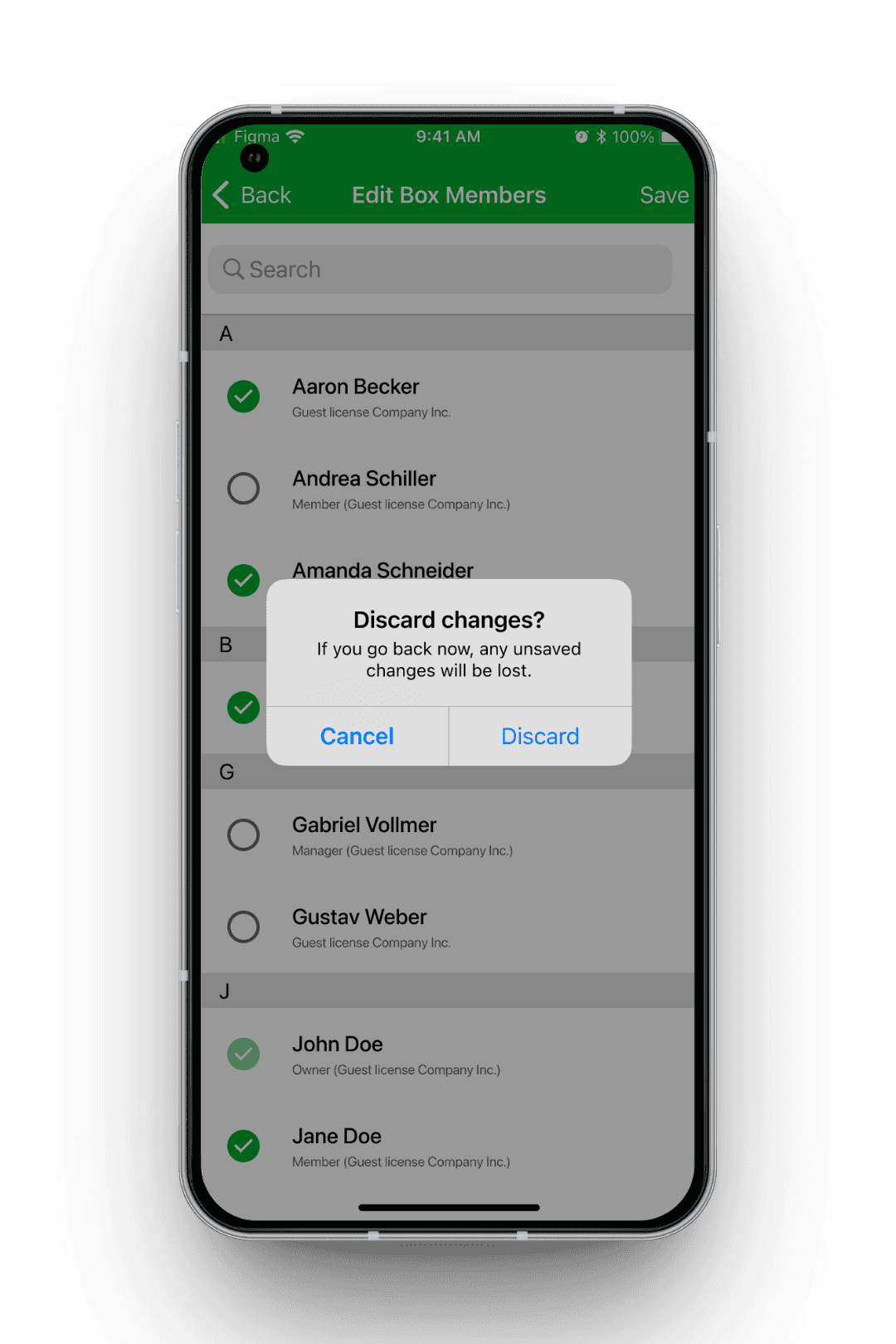
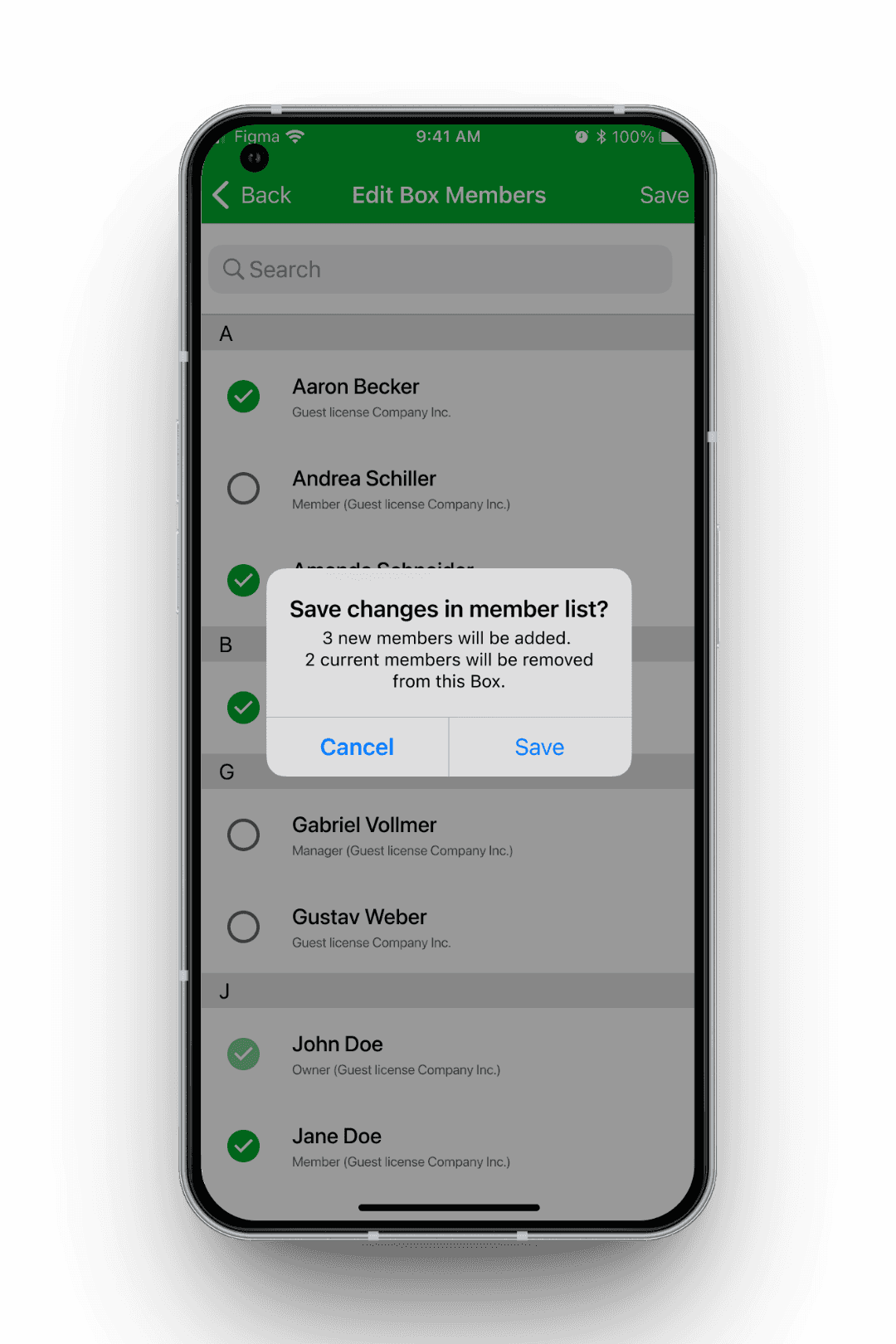
Key finding: Several test participants seemed uncertain after the multiple selection whether their action had actually been carried out as intended, and then scrolled through the list again to check whether the marked names had really disappeared. Some users also tapped the back button before confirming their changes, and thus lost their selection.
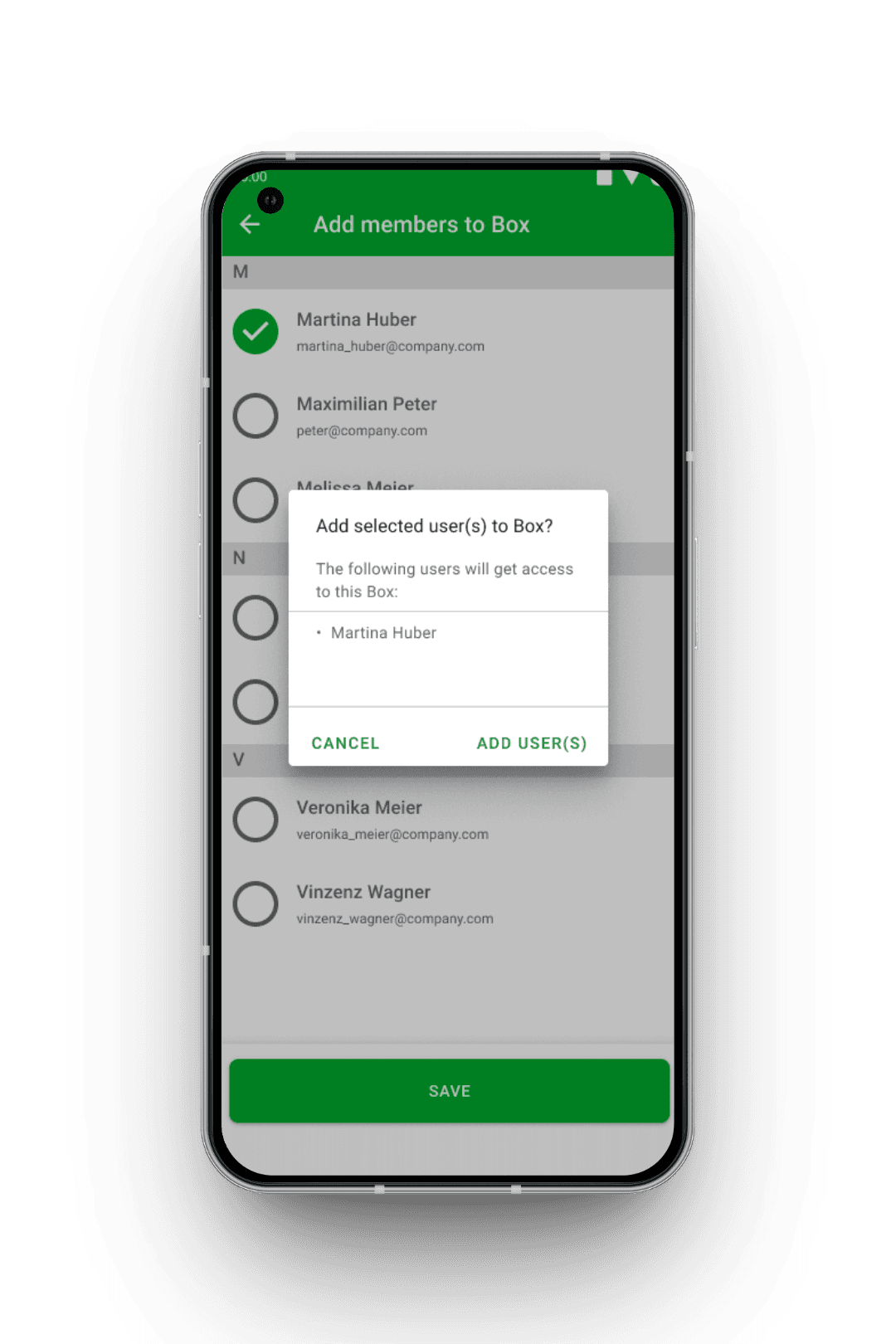
In response to these observations, two confirmation dialogs were added ("Apply the following changes?" and "Discard changes?").
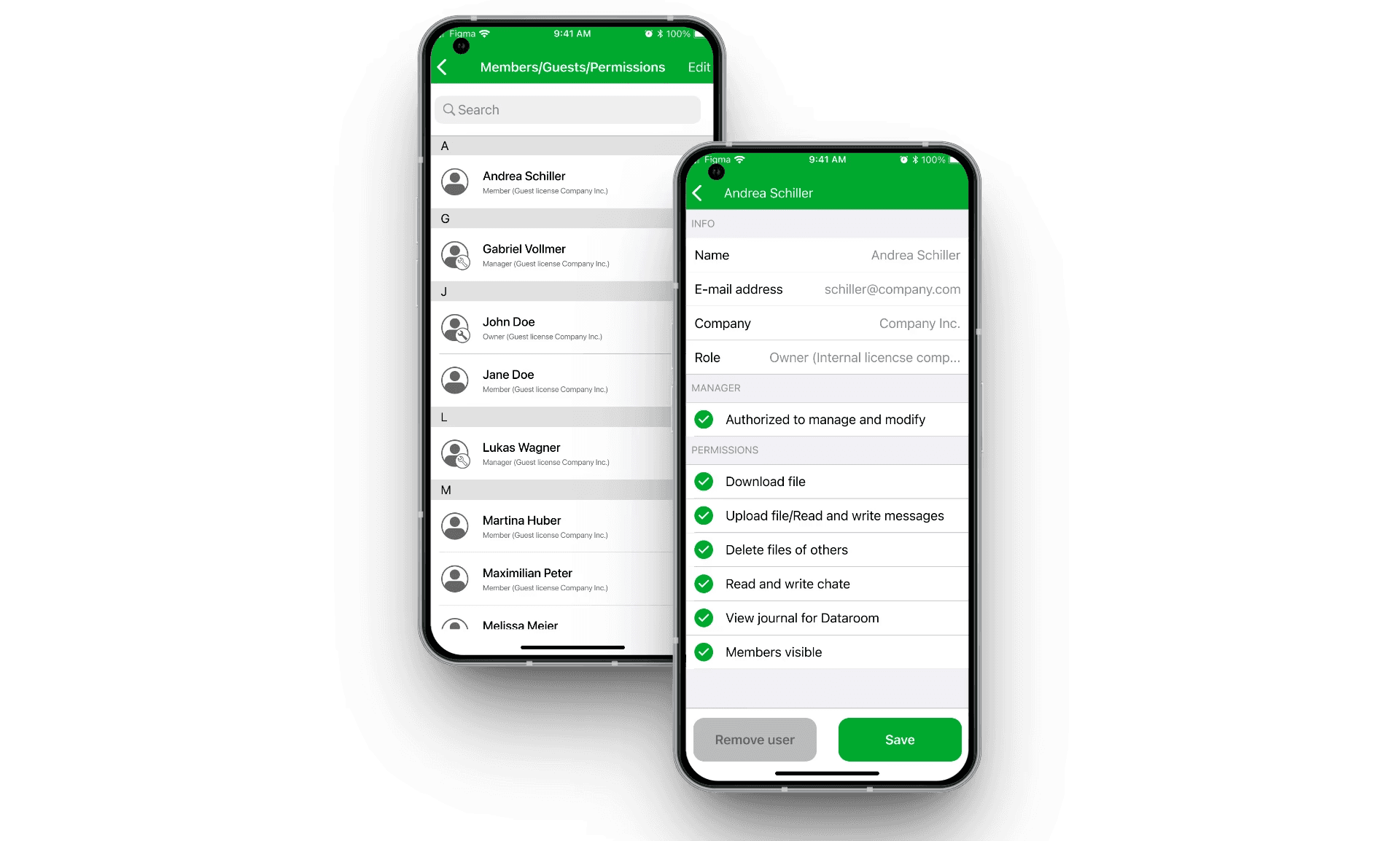
1. Split into list and detail page
What has changed
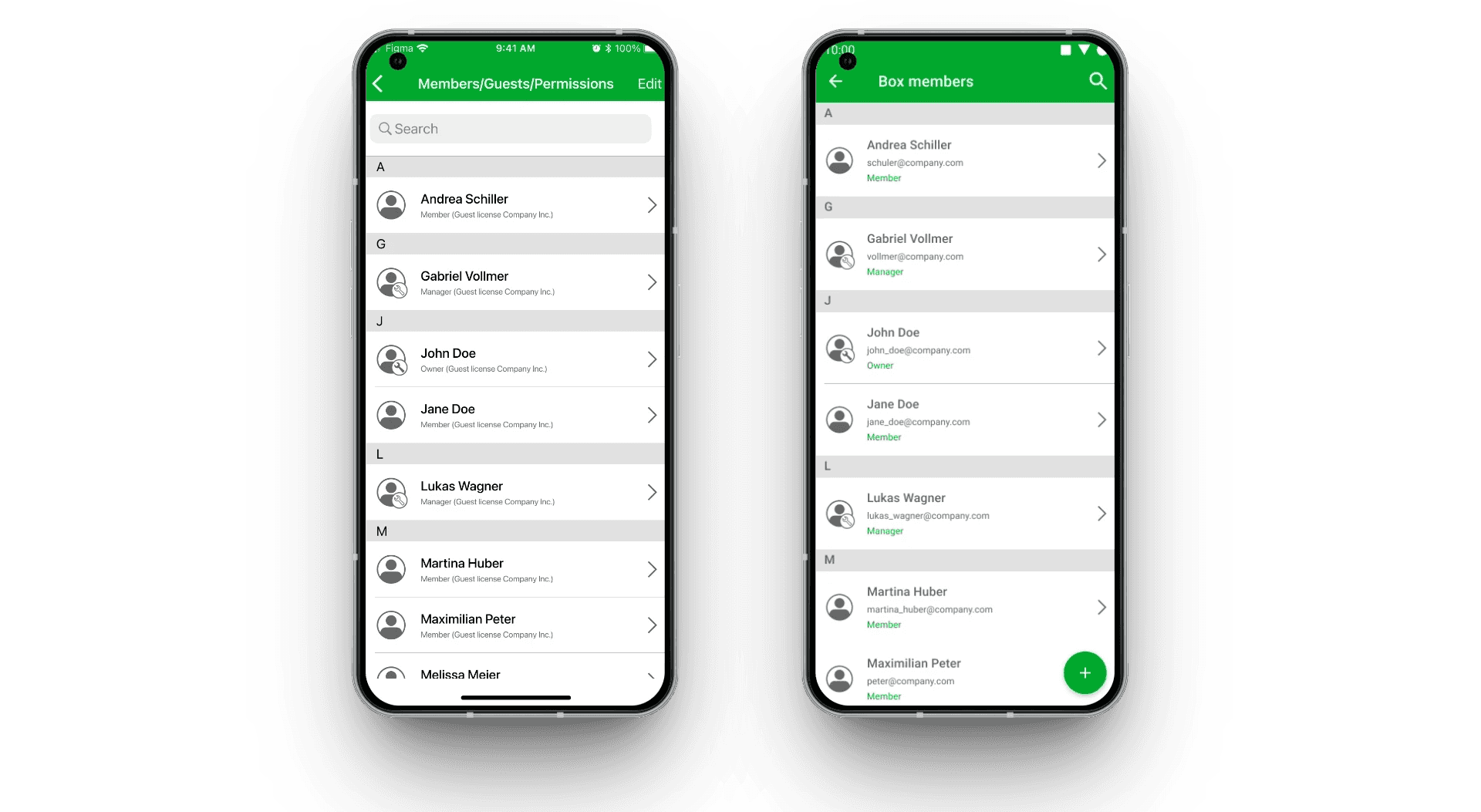
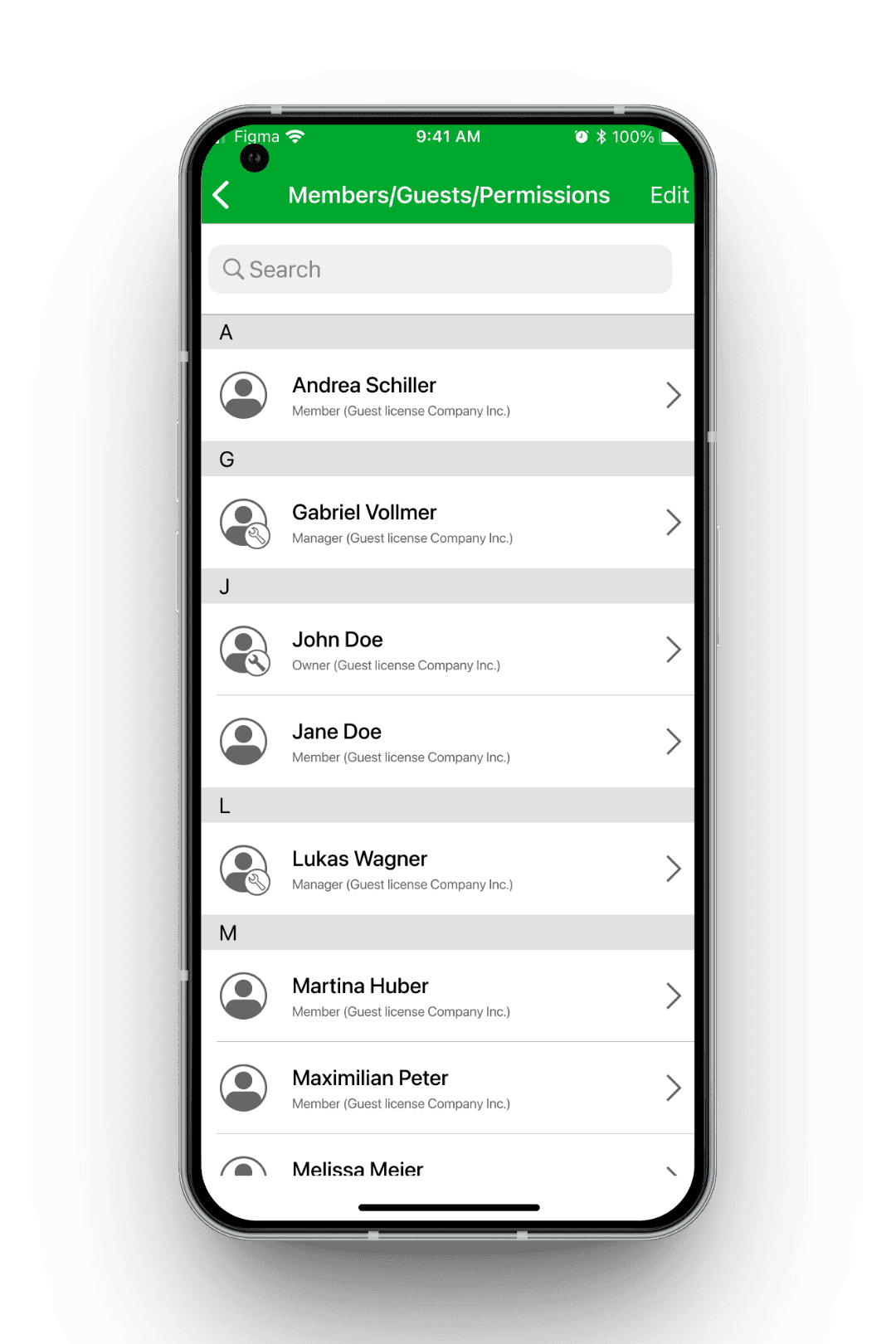
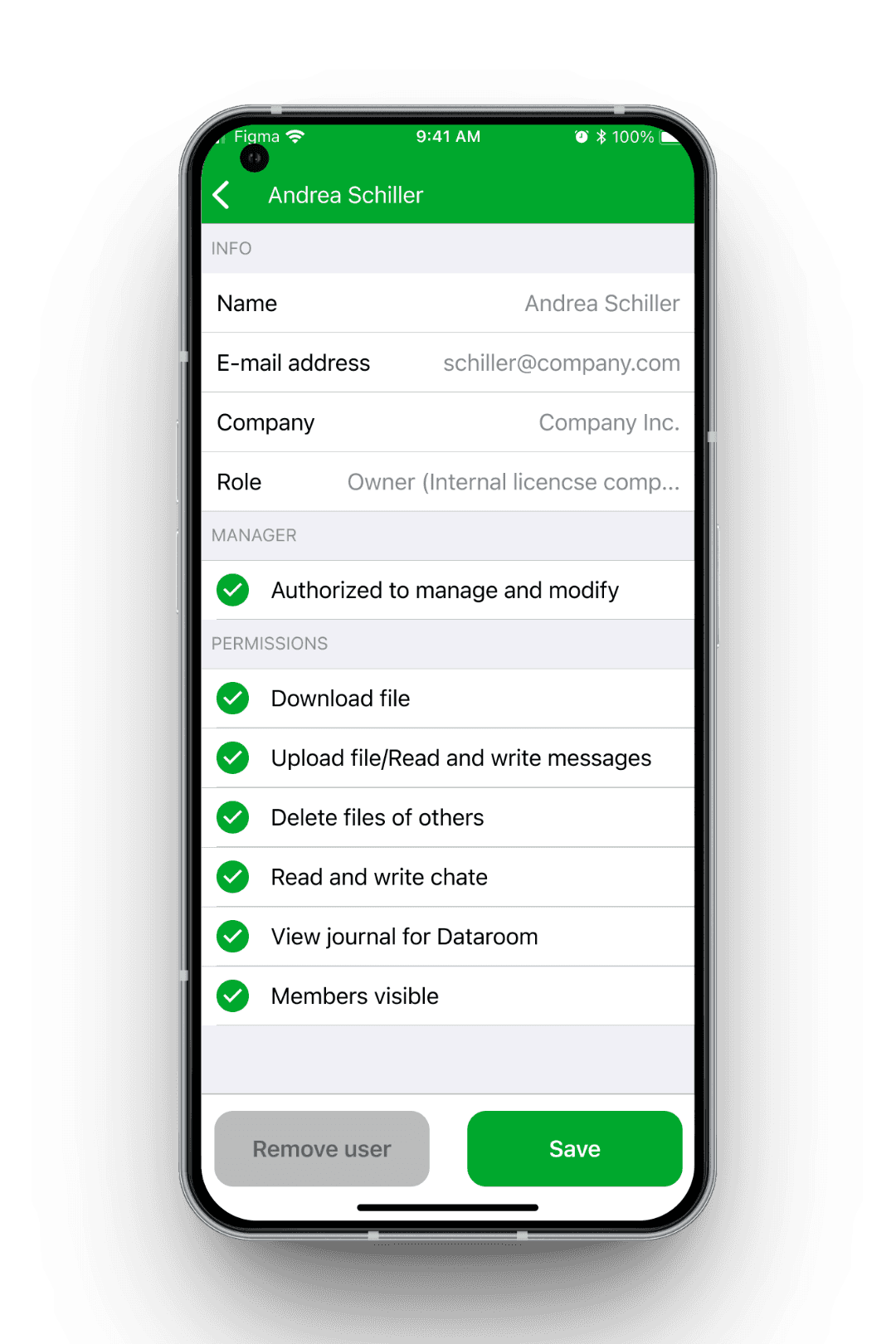
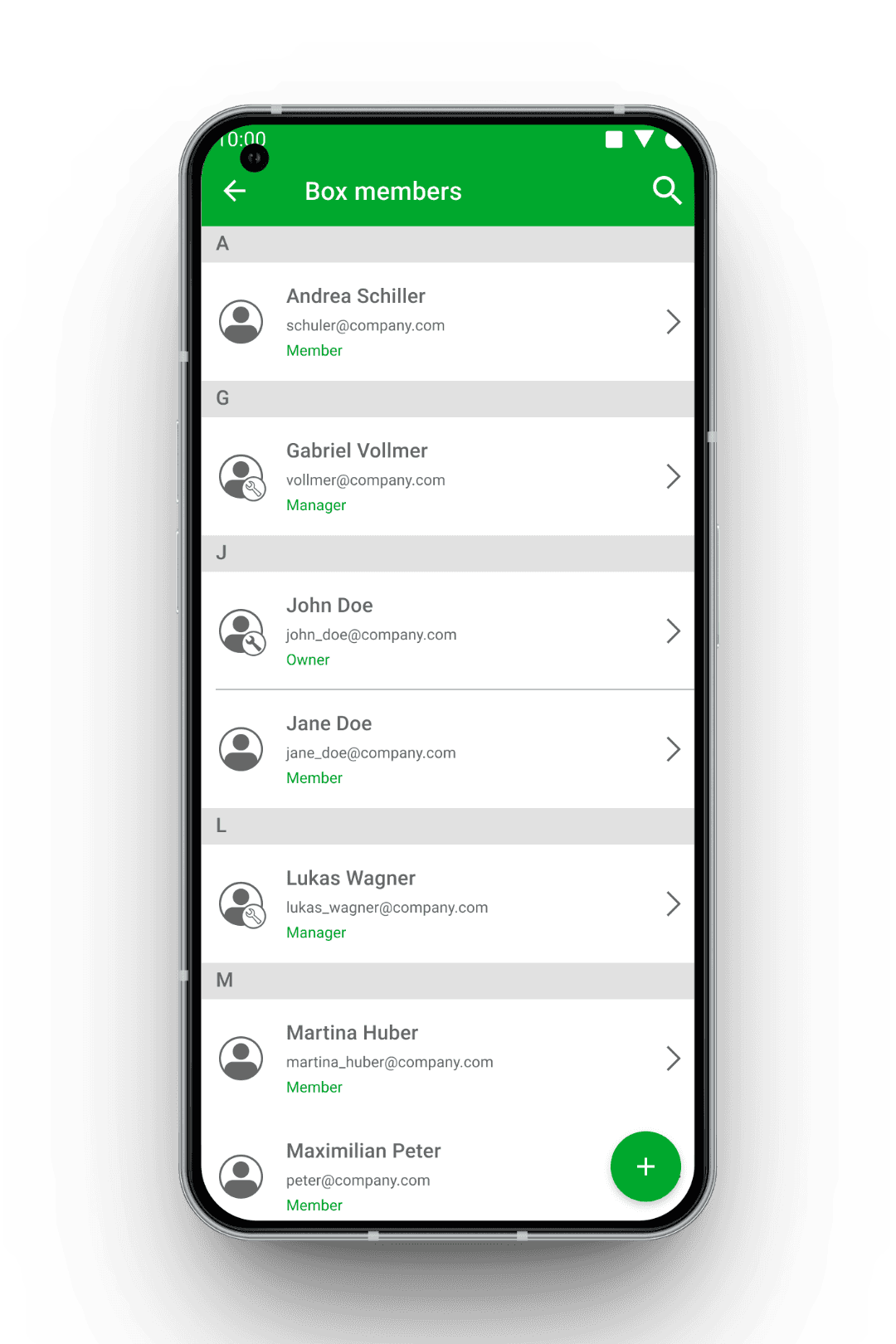
What fit side by side on a single page in the web version was split into two levels for mobile: an overview list with all members of the box and a right-pointing chevron indicator, as well as a detail page per user with the individual permissions and a "Remove user" button.
Why this matters
The detail page visually relieves the overview and reduces information density to what is necessary on mobile. The chevron clearly indicates that a subpage is hidden behind each entry.
2. Alphabetical Structure Based on the Contact List Example
What has changed
Unlike the web version, the mobile list introduced subheadings with the initial letters of names, following the example of contact apps on iOS and Android. In addition, the familiar behavior from the contact list was adopted, showing the alphabet next to the scroll bar while scrolling so that you can jump directly to a specific letter.
Why this matters
In boxes with many members, individual users can thus be found much faster by means of an established interaction mechanism.
3. Multiple selection with intentionally reduced functionality
What has changed
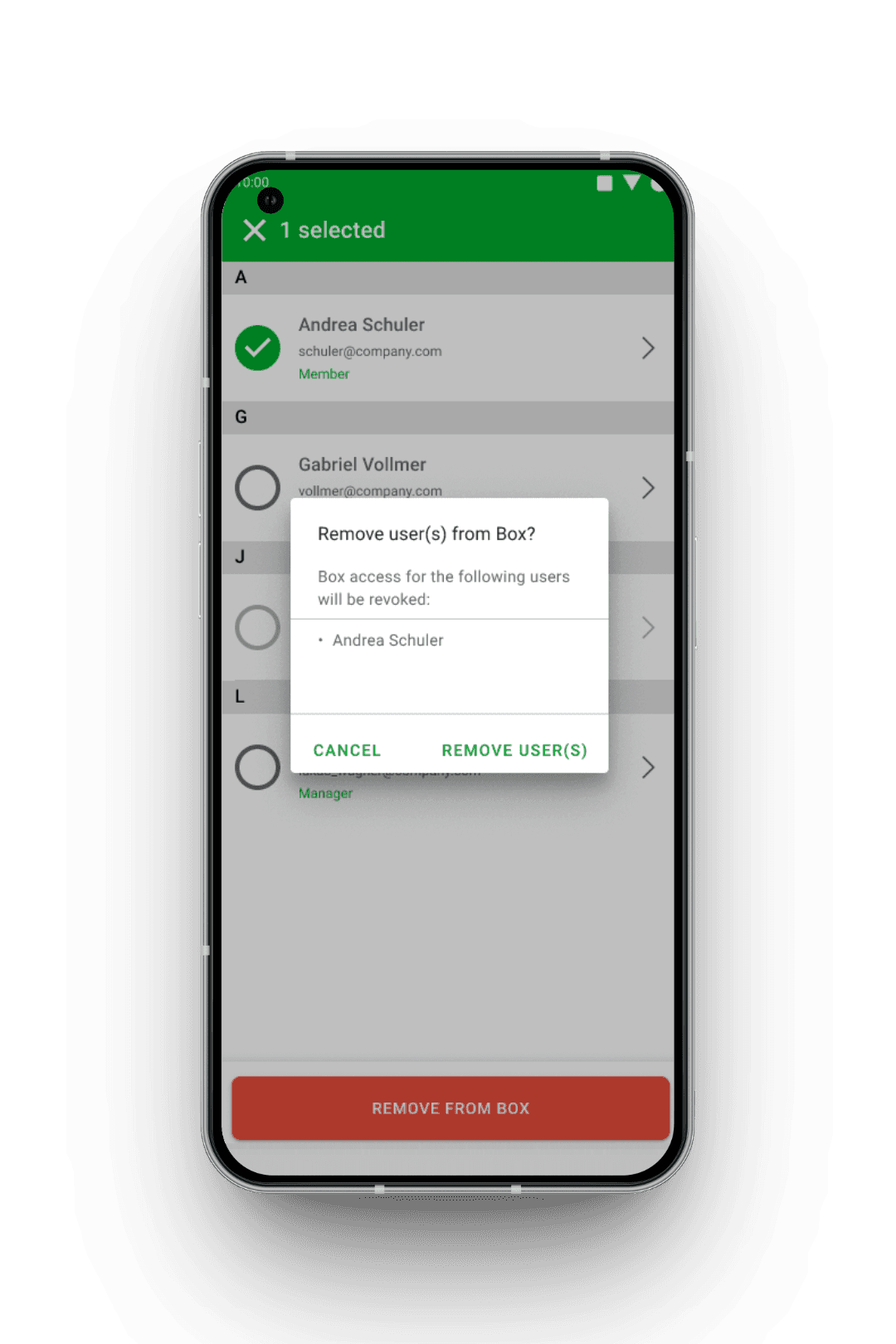
As in the web version, the mobile list also allows multiple selection via checkboxes at the start of each row. On mobile, however, the multi-action is limited to removing several members together. Changes to permissions on mobile are only possible for individual users via the detail page.
Why this matters
The user tests showed that changing permissions for multiple users at the same time was perceived as a typical desktop task, while quickly removing or adding access is also relevant on mobile. The reduction simplifies the interface without limiting a core use case.
4. Platform-specific differences between iOS and Android
What has changed
When entering the add flow, the apps follow the conventions of their respective platform:
Android: Entry via the Floating Action Button (FAB) in the bottom right corner, recognizable by the plus icon
iOS: Entry via an "Edit" button in the toolbar at the top right, since the FAB is unusual there
Also in the design of the confirmation dialogs, platform-specific patterns were taken into account: On iOS, the two options are usually stacked vertically, on Android side by side.
Why this matters
The app should feel native on both platforms, without users first having to learn an idgard-specific interaction pattern.
5. Standardization between iOS and Android based on user feedback
What changed
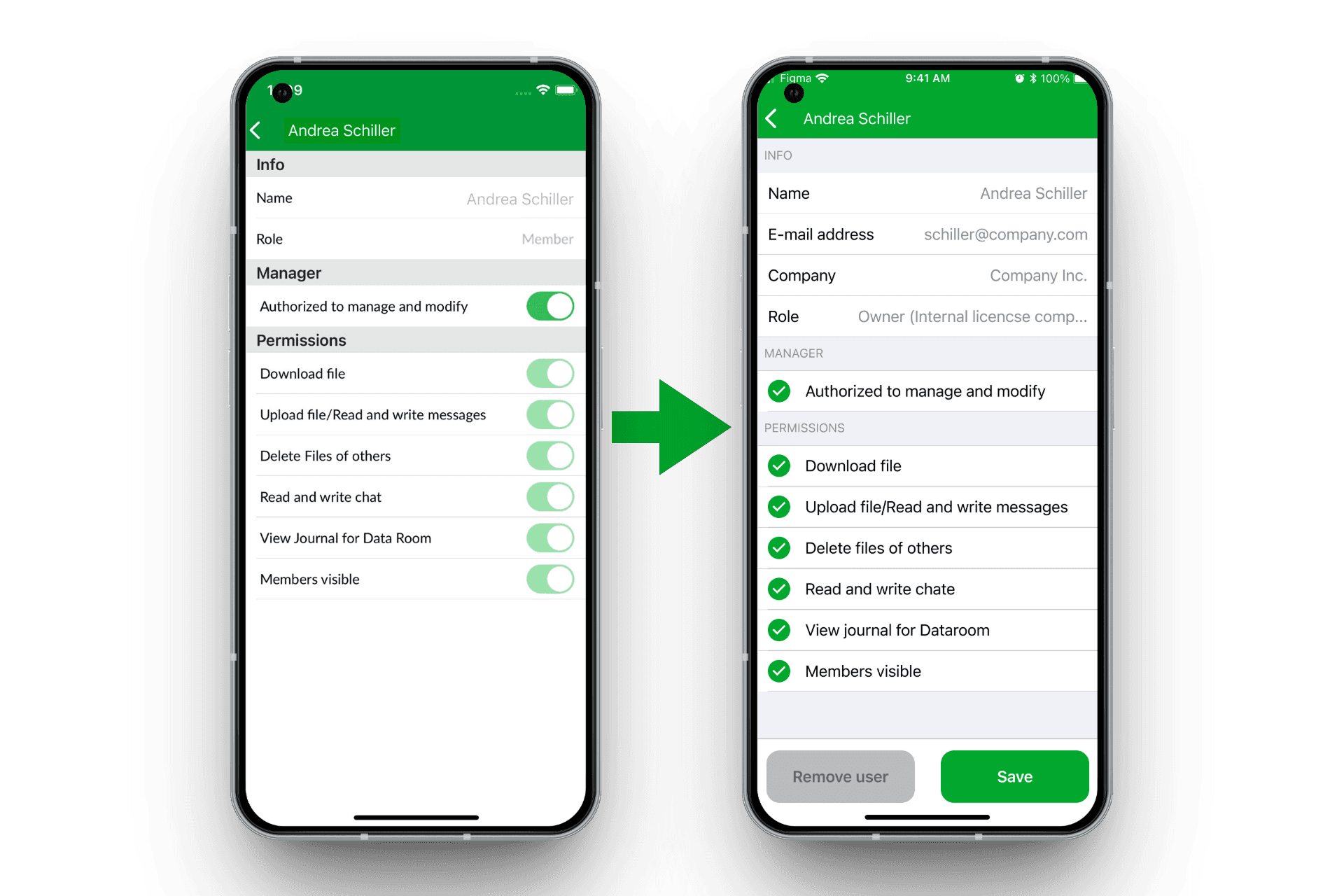
In an early version for iOS, the checkbox for multi-select was located to the right of the name; additionally, iOS-style toggles were used on the detail page of a user for permissions. In user testing, it became apparent that switching back and forth between iOS and Android across platforms was thus cumbersome, especially for administrators who use both operating systems in parallel.
As a result, the checkbox position in iOS was moved to the left side, and the detail page was also made consistent by using checkboxes (instead of toggles).
Why this matters
The decision is a conscious trade-off: to move away slightly from iOS conventions in order to enable a consistent user experience across both platforms in return, which had greater practical value in the specific enterprise context.
Member management was successfully rolled out in both mobile apps. Existing customers responded positively to the feature, especially the ability to quickly grant or revoke access while on the go, without having to go to a computer.
It was not possible to directly attribute an immediately isolatable improvement in user satisfaction to this feature alone, since additional functions were being added to the mobile apps in parallel. However, the steadily increasing download numbers for the apps afterwards suggest that the expansion of mobile functionality overall was well received.
The project was an intensive examination of the differences between iOS and Android. The sometimes subtle deviations in interaction patterns became particularly clear (Floating Action Button on Android vs. Edit button in the iOS toolbar, horizontal vs. vertical dialog buttons, different conventions for controls such as toggles or checkboxes). Working in parallel with the Figma templates of both design systems noticeably deepened my understanding of platform-appropriate design.
At the same time, it became clear to me that platform-appropriate design is not an end in itself. The decision to standardize checkbox placement and controls in favor of cross-platform consistency was the result of a specific user observation, not a general rule. Since then, I have perceived this trade-off between platform fidelity and product-internal consistency as a recurring theme in multi-platform projects.
Since this was also one of my first larger projects as a UX designer, I also deepened my experience with JIRA and GitLab as well as the collaboration with the Product Owner and development team in an agile context: providing mock-ups and clickable prototypes as early as possible so that development progress would not be slowed down by missing design templates.